Changelog

Follow new updates and improvements to Lamatic.ai.

Global search is here, plus a cleaner sidebar

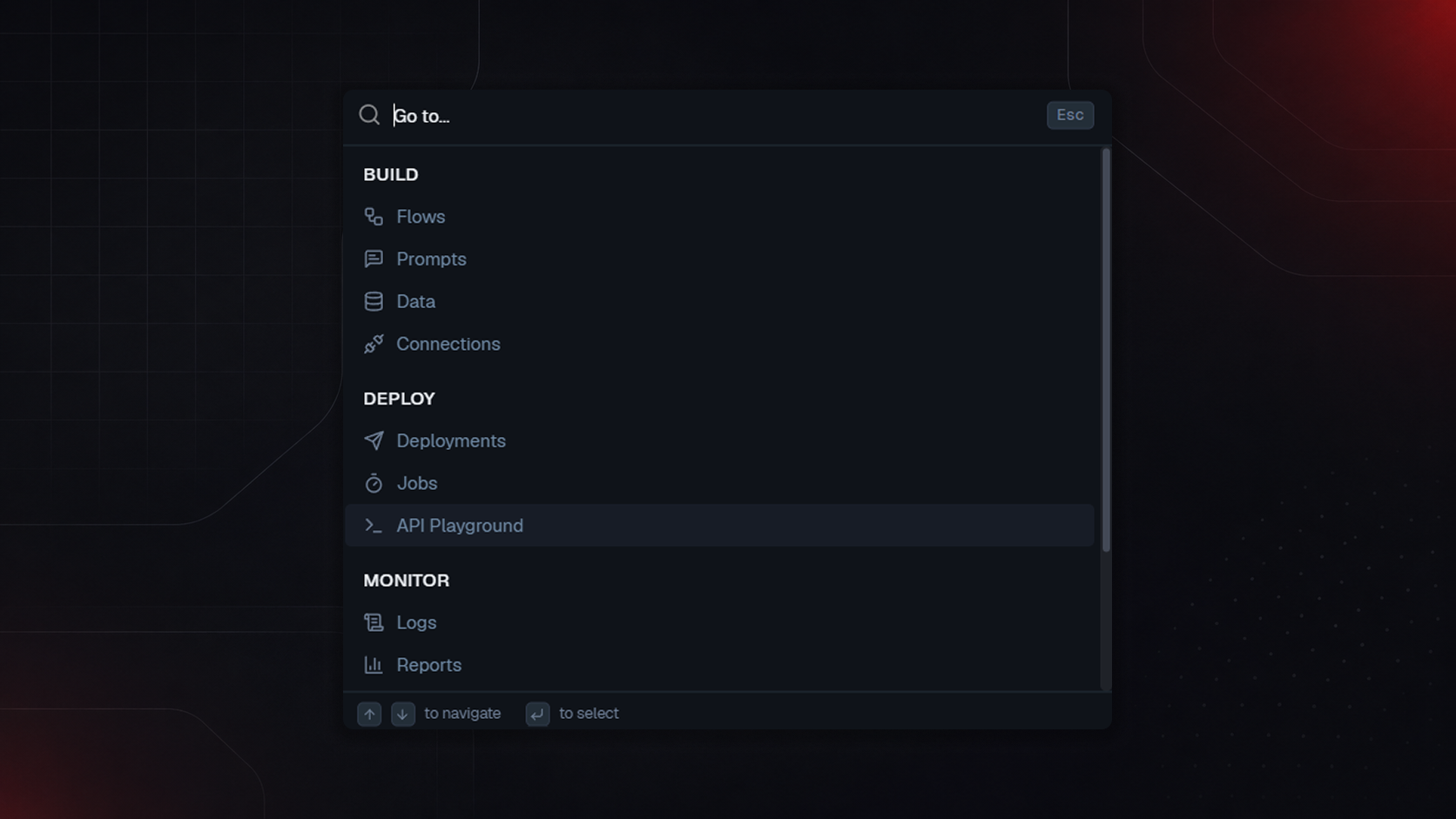
Global Search

Press the search shortcut (Ctrl/Cmd + K) or click the search icon anywhere in the app and jump straight to any section: Flows, Prompts, Data, Connections, Deployments, Jobs, API Playground, Logs, Reports grouped under Build, Deploy, and Monitor.

Type to filter, use arrow keys to navigate, hit Enter to go. No more hunting through the sidebar for something you know exists but can't remember where you tucked it.


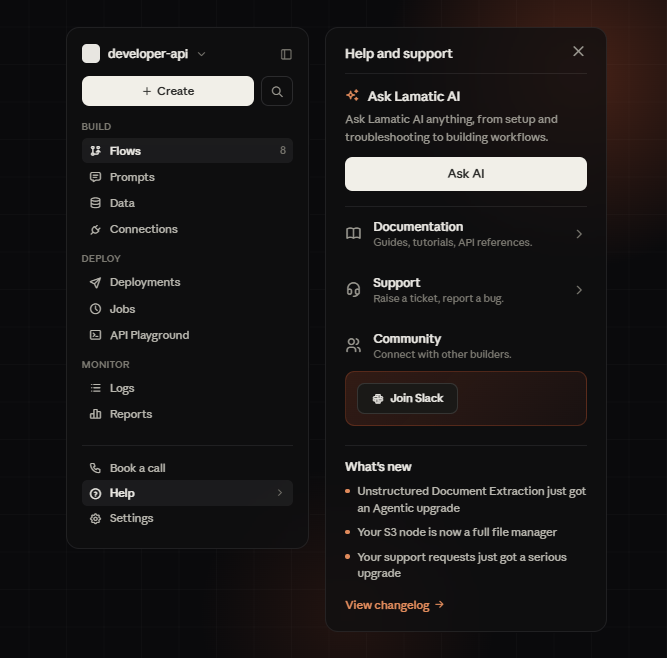
Sidebar improvements

The sidebar's been reorganized around how you actually work: Build, Deploy, and Monitor as clear sections instead of one long flat list. We've also added quick access at the bottom for:

  • Book a Call to talk to the team directly

  • Help get support without leaving the app

  • Settings are now easier to reach


Try it in Studio →

Improved

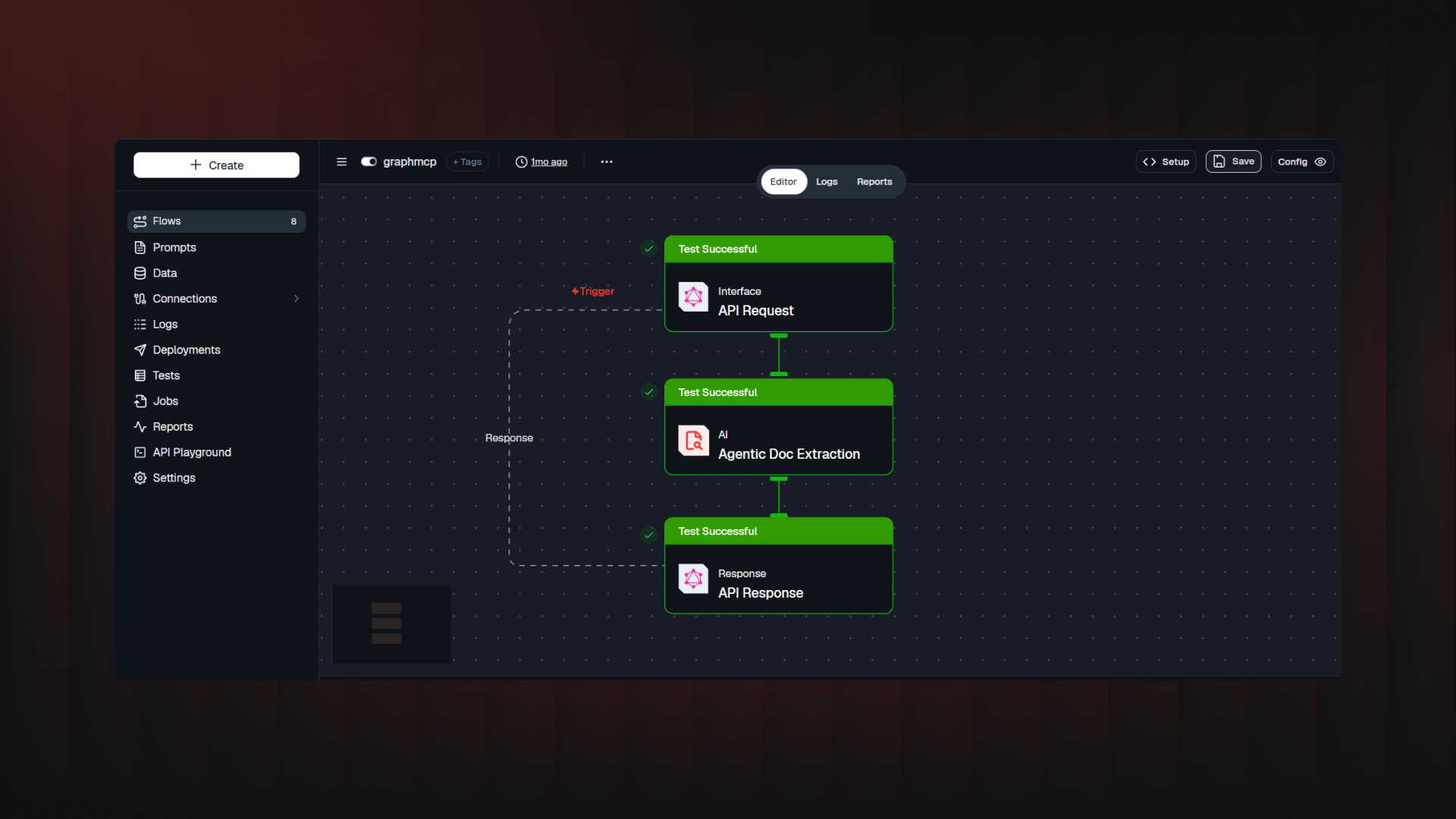
Unstructured Document Extraction just got an Agentic Upgrade

A PDF lands in your flow, and getting anything usable out of it means three separate steps: OCR it, parse the result into something structured, then figure out where to put the images so they don't just vanish as base64 blobs.

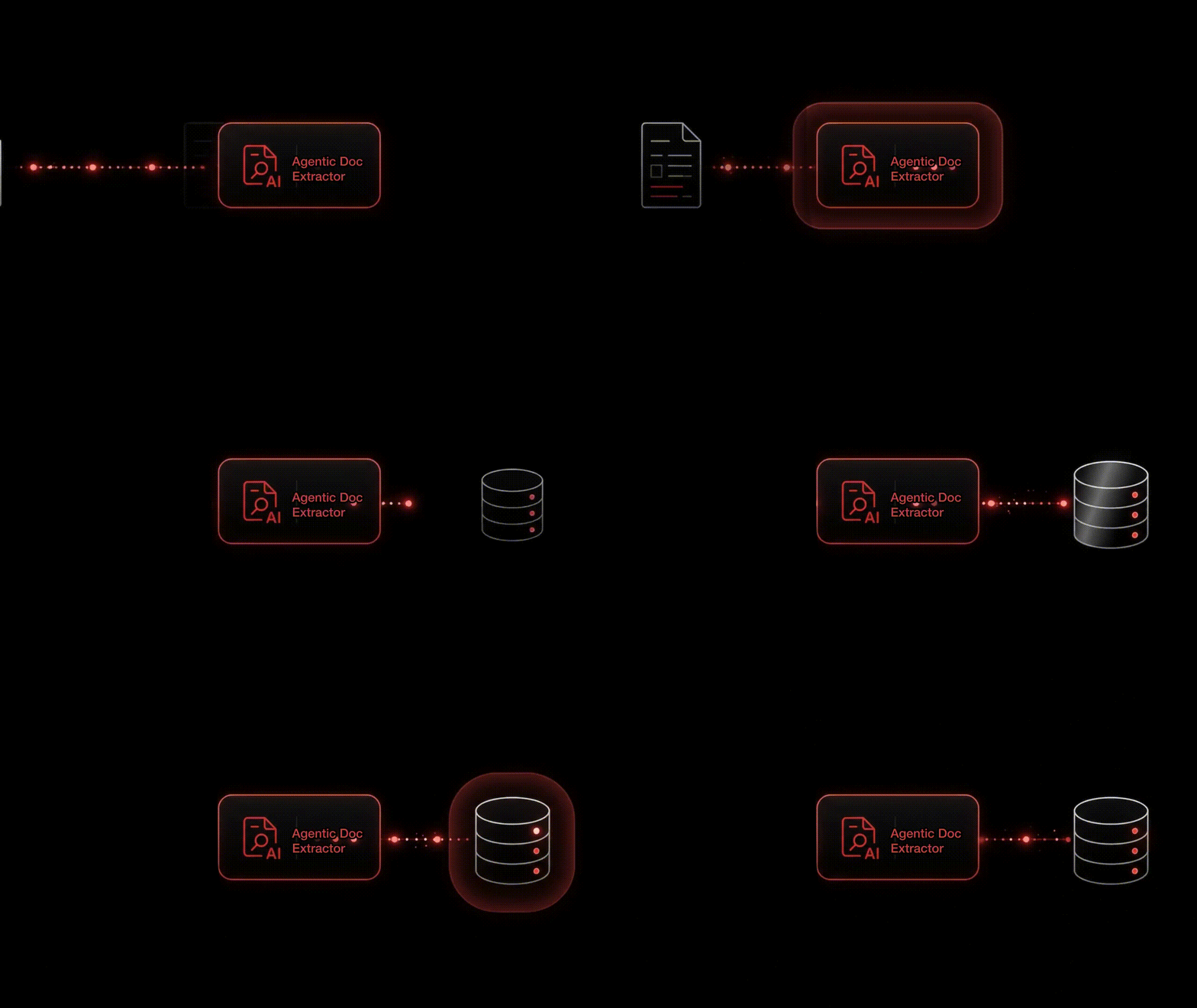
The new Agentic Doc Extraction node does all three in one place. Give it a document, tell it what you want back, and you get clean Markdown, structured JSON, and every image, stored and ready to use, from a single step.

What you actually get back

  • Markdown, page by page or joined into one document ready to drop into a RAG pipeline as-is.

  • Structured JSON, shaped to a schema you write yourself. No prompt tuning; you describe what a field means once, and the model finds it on every document you run through.

  • Every image in the document, automatically stored with a signed URL you can use right away and a durable key for later. No more inline base64 bloating your flow's output.

  • Bounding boxes and per-image annotations, if you want the model to read a chart or figure the same way it reads a page.

How it works

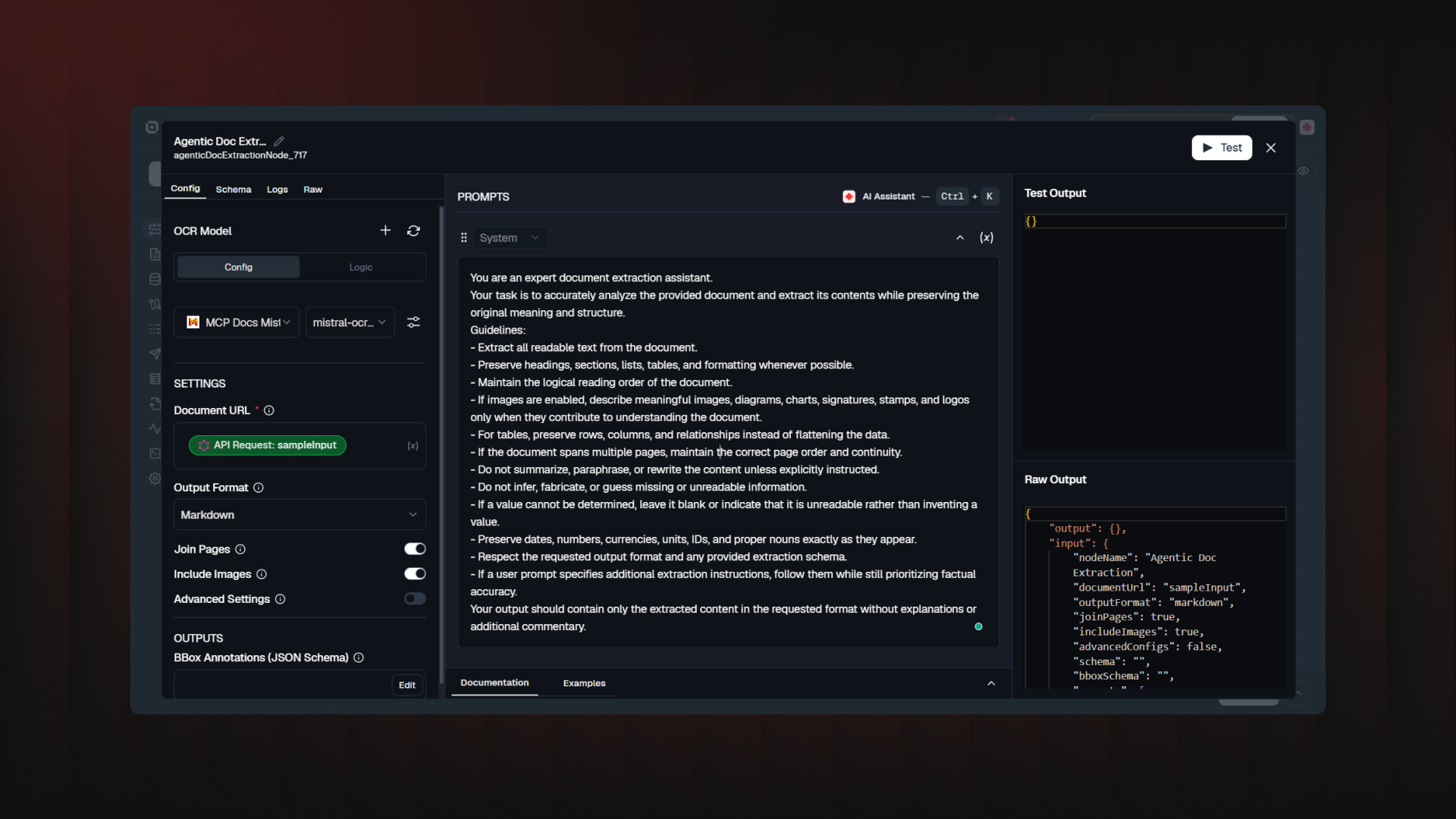
Drop the node into a flow, point it at a document URL, and pick your OCR provider: Mistral's public API, or your own private Azure AI Foundry endpoint if that's where your data needs to stay.

Under the hood, each run gets its own isolated container. It splits the document into pages, OCRs them in parallel, and stores any images it finds.

The part that actually matters is the Output Schema. You're not writing a prompt and hoping you're describing each field in plain language, and the model reads the document specifically for that field. Change the description, change what comes back. No trial and error.

If you're coming from Doc Extractor

Doc Extractor is retired, but nothing you've already built breaks. If you're moving a flow over, three things behave differently and are worth knowing before you switch:

  • Gemini isn't supported here. Only Mistral and Azure AI Foundry. If you were on Gemini, you'll need to pick a different provider.

  • extractedText is now a list of pages, not one long string.

  • structuredData is now a list too, one entry per page, instead of a single object.

The docs have a full field-by-field mapping if you want to check before you touch a production flow.


[Agentic Doc Extraction→]

Improved

Your S3 node is now a full file manager

Until now, the S3 node did one thing: watch a bucket and feed new files into a RAG flow. Useful, but limited: if you wanted to actually do something with a file, you were stuck writing custom code or bolting on another tool.

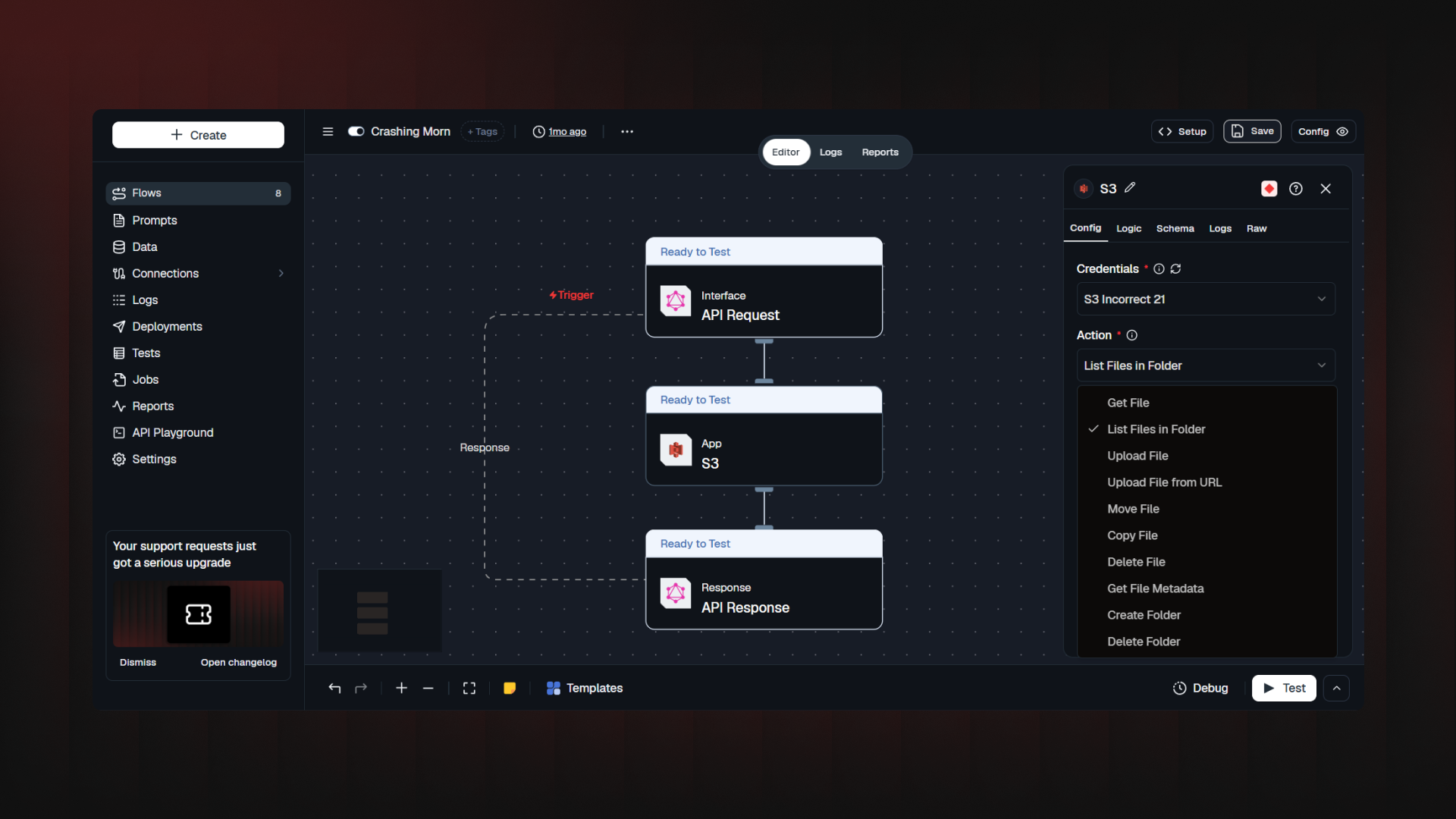
Not anymore. The S3 node now works in two modes, picked per node.

How it works

Trigger mode is the S3 node you already know: it watches a bucket on a schedule and syncs files into a flow for RAG. Unchanged, your existing flows keep working exactly as they did.

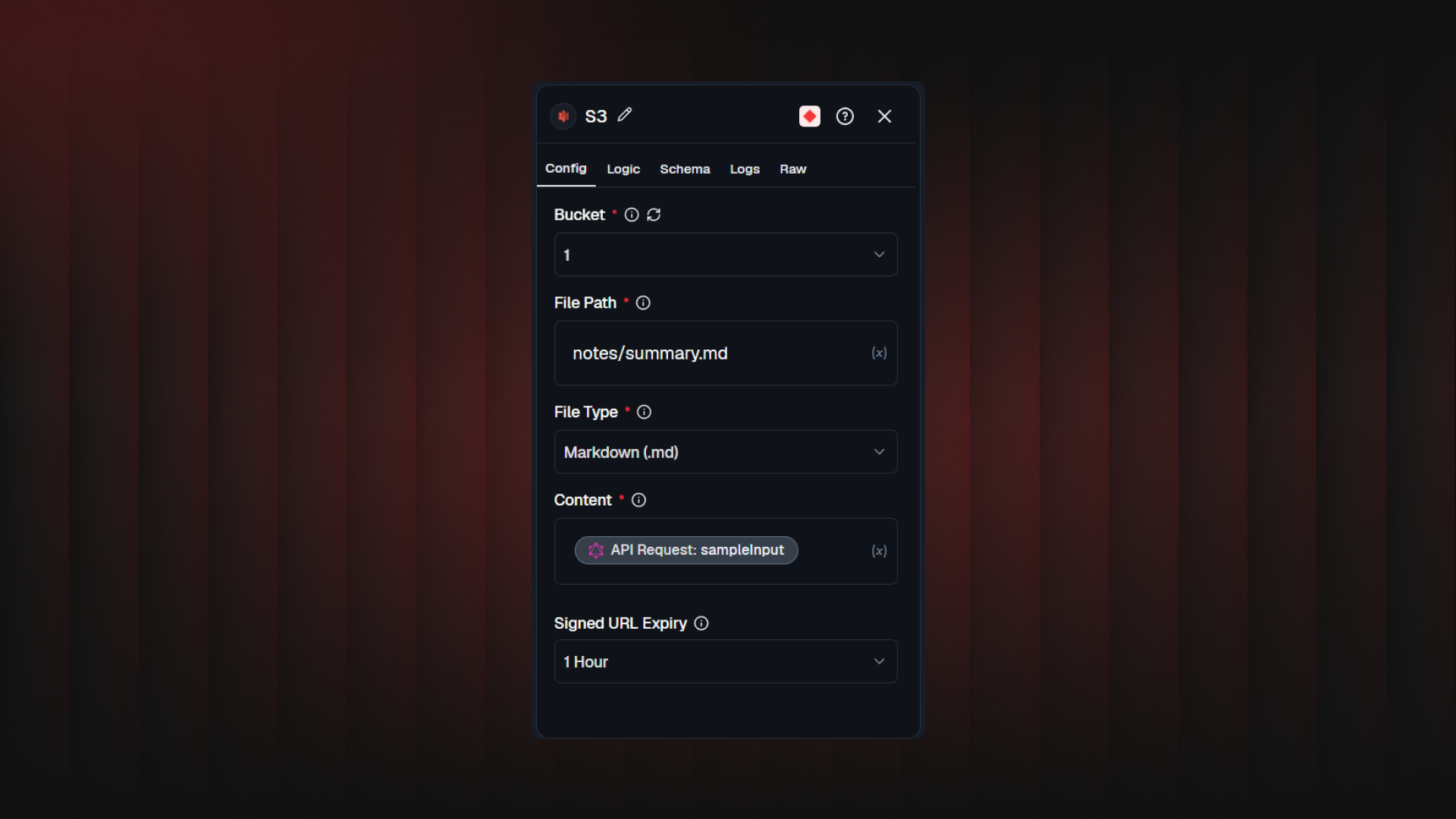
Action mode is brand new. Drop an S3 node anywhere in a flow and pick an operation from the Action dropdown: upload, fetch, list, move, copy, delete, check existence, read metadata, or manage folders. Ten operations, each showing only the fields it needs.

  • Upload File: write text, Markdown, JSON, CSV, or HTML into the bucket, straight from the flow. JSON gets validated before anything is written.

  • Upload File from URL: hands off a download to the bucket. Locked down since the URL is flow-controlled: only http/https, no private/internal addresses, capped at 100 MB / 120 seconds.

  • Get File / List Files in Folder: grab a signed URL for one file, or browse a folder with glob filtering.

  • Move / Copy File: relocate or duplicate files, even across buckets, with checks against overwriting a file with itself.

  • Delete File / Delete Folder / Create Folder / Get File Metadata: the rest of the toolkit.

Every action returning a URL lets you set Signed URL Expiry from 15 minutes to 7 days.


Also new: any S3-compatible provider, and clearer permissions

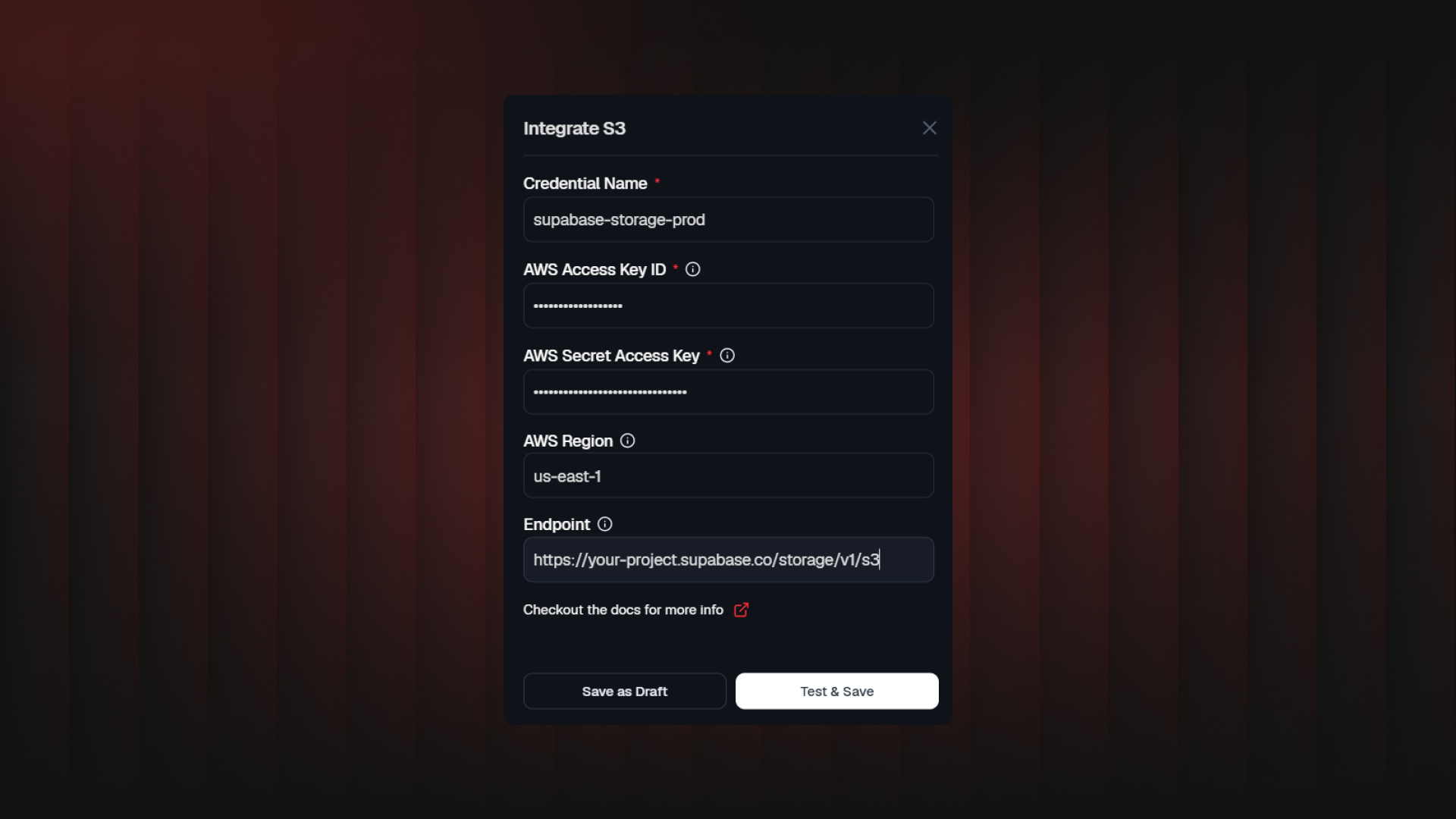
Point the new Endpoint field at Supabase Storage, MinIO, Cloudflare R2, or anything else speaking the S3 API; leave it empty, and it's AWS, as before. An AWS Region field was added too, used to sign requests correctly.

On the permissions side: Trigger mode still only needs read access. Action mode needs s3:PutObject (upload, copy, create folder) and s3:DeleteObject (delete, move) added to your IAM policy; we've documented a combined example so you're not guessing at the JSON.


One more small fix: Trigger mode's document_url used to be an s3:// path. It's now a signed HTTPS URL, valid for 5 hours, ready to use directly.

[Try it in Studio→]

Earlier updates